# 2.Installing Required Software for the Node

### 2.1 Download the Node Installation Package <a href="#id-2.1-download-the-node-installation-package" id="id-2.1-download-the-node-installation-package"></a>

**Please stay tuned!**&#x200B;**Please install step by step, choosing 'Next' by default (except for the virtual sound card)：**

#### It is recommended to use 7zip software for extraction; download the 64-bit Windows x64 version. And rename the extracted folder to 'miner'.

<figure><img src="https://2659394646-files.gitbook.io/~/files/v0/b/gitbook-x-prod.appspot.com/o/spaces%2F9CJd26QKcdOFwMDIr6IB%2Fuploads%2FvluuDkYpK7pBL2AHZFI4%2F2.1-1.png?alt=media&#x26;token=05009526-d916-419b-8dda-2cb696951621" alt=""><figcaption></figcaption></figure>

### 2.2 Install VC Runtime Library  <a href="#id-2.2-install-vc-runtime-library" id="id-2.2-install-vc-runtime-library"></a>

#### VC Runtime Library(miner\software\VisualCppRedist\_AIO\_x86\_x64.exe)

<figure><img src="https://2659394646-files.gitbook.io/~/files/v0/b/gitbook-x-prod.appspot.com/o/spaces%2F9CJd26QKcdOFwMDIr6IB%2Fuploads%2FuwTUvcby6J4ZEvaWYE7y%2F2-2.png?alt=media&#x26;token=dcf85d63-055c-4aa0-b98d-002e4db0b2ab" alt=""><figcaption></figcaption></figure>

### 2.3 Install DX Runtime <a href="#id-2.3-install-dx-runtime" id="id-2.3-install-dx-runtime"></a>

#### After installation, it is necessary to detect and repair any issues.Launch“ miner\software\DirectX\_Repair-Eng\DirectX Repair.exe‘’.​

<figure><img src="https://2850557763-files.gitbook.io/~/files/v0/b/gitbook-x-prod.appspot.com/o/spaces%2F8zqrLhURHxtqyfjEN6GS%2Fuploads%2FfIvh4yz5xur0OaQ6Siws%2F%E5%BE%AE%E4%BF%A1%E5%9B%BE%E7%89%87_20231122150022.png?alt=media&#x26;token=8afc740b-2b08-40df-9a46-fc1d808ea3a5" alt=""><figcaption></figcaption></figure>

### 2.4 Text Editor: Notepad++  <a href="#id-2.4-text-editor-notepad" id="id-2.4-text-editor-notepad"></a>

#### Virtual Audio Card Driver (miner\software\VirtualAudioCable\setup64.exe)

### 2.5 Install the virtual audio card <a href="#id-2.5-install-the-virtual-audio-card" id="id-2.5-install-the-virtual-audio-card"></a>

#### The setup64.exe, and click 'Next' until the installation is complete.

<figure><img src="https://2850557763-files.gitbook.io/~/files/v0/b/gitbook-x-prod.appspot.com/o/spaces%2F8zqrLhURHxtqyfjEN6GS%2Fuploads%2FJshfwR8LBdET5sINuk32%2F1.3.png?alt=media&#x26;token=996b0cd5-b564-473a-897b-a729ffdf7f81" alt=""><figcaption></figcaption></figure>

#### **Select: "I am an advanced user, give me additional options."**

<figure><img src="https://2659394646-files.gitbook.io/~/files/v0/b/gitbook-x-prod.appspot.com/o/spaces%2F9CJd26QKcdOFwMDIr6IB%2Fuploads%2Fa5Y0VPv2LHw2JLXNdy6L%2F2-5.png?alt=media&#x26;token=f8fb0cce-3855-429f-9c19-f90c4cd1083d" alt=""><figcaption></figcaption></figure>

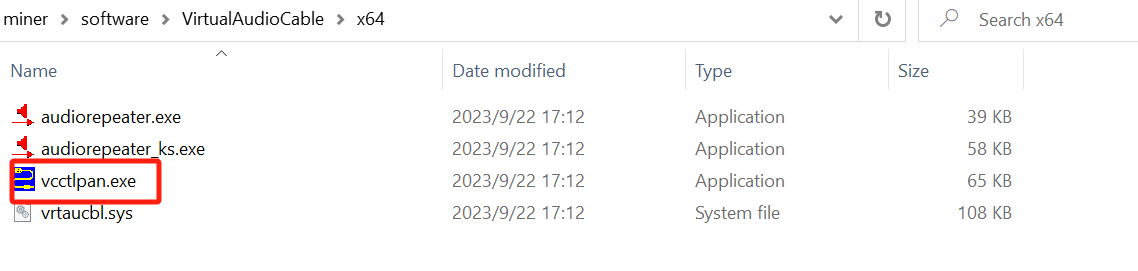
### 2.6 Launch the Virtual Audio Card Control Panel (vcctlpan.exe) with administrator privileges <a href="#id-2.6-launch-the-virtual-audio-card-control-panel-vcctlpan.exe-with-administrator-privileges" id="id-2.6-launch-the-virtual-audio-card-control-panel-vcctlpan.exe-with-administrator-privileges"></a>

​

<figure><img src="https://2850557763-files.gitbook.io/~/files/v0/b/gitbook-x-prod.appspot.com/o/spaces%2F8zqrLhURHxtqyfjEN6GS%2Fuploads%2Fwpd7RJvZCw1uMbmRJW5g%2F1.4.png?alt=media&#x26;token=70344c01-adf7-4082-a794-5998f1a8d864" alt=""><figcaption></figcaption></figure>

### 2.7 Modify the driver parameter value to "2" <a href="#id-2.7-modify-the-drive-parameter-value-to-2" id="id-2.7-modify-the-drive-parameter-value-to-2"></a>

#### Click 'Set' ，then click 'Restart Audio Engine.' <a href="#id-2.7-modify-the-drive-parameter-value-to-2" id="id-2.7-modify-the-drive-parameter-value-to-2"></a>

<figure><img src="https://2659394646-files.gitbook.io/~/files/v0/b/gitbook-x-prod.appspot.com/o/spaces%2F9CJd26QKcdOFwMDIr6IB%2Fuploads%2FWeMs59T8UF0hINysIJeL%2F1.5_%E5%89%AF%E6%9C%AC.png?alt=media&#x26;token=fb6fd3b3-93f8-41e1-bd45-4488336a33c5" alt=""><figcaption></figcaption></figure>

### 2.8 Left-click on the volume icon on the Windows desktop <a href="#id-2.8-left-click-on-the-volume-icon-on-the-windows-desktop" id="id-2.8-left-click-on-the-volume-icon-on-the-windows-desktop"></a>

#### If it displays as shown in the figure below, the configuration is successful.

<figure><img src="https://2850557763-files.gitbook.io/~/files/v0/b/gitbook-x-prod.appspot.com/o/spaces%2F8zqrLhURHxtqyfjEN6GS%2Fuploads%2FHH6w7027flAYBv3M45J0%2F1.6.png?alt=media&#x26;token=e8a2fc92-cf90-4e89-a221-1853d61dd369" alt=""><figcaption></figcaption></figure>

### 2.9 Finally, set up Windows services to start automatically <a href="#id-2.9-finally-set-up-windows-services-to-start-automatically" id="id-2.9-finally-set-up-windows-services-to-start-automatically"></a>

#### Launch the Windows Service application, search for "Services" in the search box, find Windows Audio and Windows Audio Endpoint, right-click on each, open the menu, and set the Startup Type in their properties to "Automatic" (if it is already set to automatic, no action is needed).Node port openings: TCP: 10002, UDP: 10011-10040

<figure><img src="https://2850557763-files.gitbook.io/~/files/v0/b/gitbook-x-prod.appspot.com/o/spaces%2F8zqrLhURHxtqyfjEN6GS%2Fuploads%2FjE7GvswF2uejHaXT6ZQj%2F1.7.png?alt=media&#x26;token=6bc901cf-6e46-461a-b412-d969e1583e94" alt=""><figcaption></figcaption></figure>

### 2.10 Run 'miner\config.bat' <a href="#id-2.10-run-config.bat-miner-config.bat" id="id-2.10-run-config.bat-miner-config.bat"></a>

#### After completing the above steps, run 'miner\config.bat'

<figure><img src="https://2659394646-files.gitbook.io/~/files/v0/b/gitbook-x-prod.appspot.com/o/spaces%2F9CJd26QKcdOFwMDIr6IB%2Fuploads%2FVUCbckAVTmI1OSlfI1OD%2F2.10.png?alt=media&#x26;token=0049b32d-f9aa-436d-af62-61e04c965145" alt="" width="563"><figcaption></figcaption></figure>

#### If the control panel displays the following information, it indicates success.

<figure><img src="https://2850557763-files.gitbook.io/~/files/v0/b/gitbook-x-prod.appspot.com/o/spaces%2F8zqrLhURHxtqyfjEN6GS%2Fuploads%2FUo2hWWfDhDqIXD3E9CqX%2F1.8.png?alt=media&#x26;token=71a74740-1aac-4fac-90a2-c3511b8894e4" alt="" width="563"><figcaption></figcaption></figure>

### 2.11 Click "Continue"  <a href="#id-2.11-click-continue" id="id-2.11-click-continue"></a>

#### If the environment check is normal, it indicates successful startup.​

#### \*Proceed to the next step. If the environment check is normal, the startup is successful. If the startup fails, please refer to the 【Guide to Common Issues】 for step-by-step troubleshooting and then restart the service. <a href="#proceed-to-the-next-step.-if-the-environment-check-is-normal-the-startup-is-successful.-if-the-start" id="proceed-to-the-next-step.-if-the-environment-check-is-normal-the-startup-is-successful.-if-the-start"></a>

​